Verify PDF Contents Using Playwright and Node.JS
Web UI is used to download the PDF file like real user:
Press enter or click to view image in full size
Navigate the browser to the PDF link and download the PDF file into the ExportData Directory
Then I will write the PDF text content to console using pdf-parse:
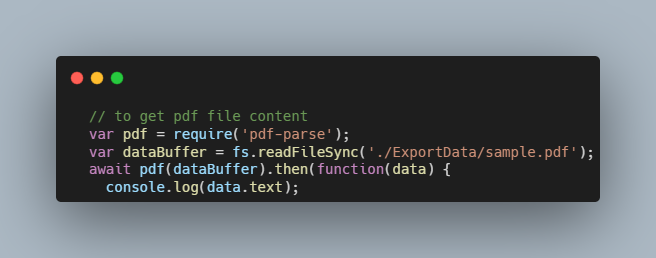
Write the PDF text contents to console
Output:
 A Simple PDF File
 This is a small demonstration .pdf file -
 just for use in the Virtual Mechanics tutorials. More text. And more
 text. And more text. And more text. And more text.
 And more text. And more text. And more text. And more text. And more
 text. And more text. Boring, zzzzz. And more text. And more text. And
 more text. And more text. And more text. And more text. And more text.
 And more text. And more text.
 And more text. And more text. And more text. And more text. And more
 text. And more text. And more text. Even more. Continued on page 2 ...
Simple PDF File 2
…continued from page 1. Yet more text. And more text. And more text.
And more text. And more text. And more text. And more text. And more
text. Oh, how boring typing this stuff. But not as boring as watching
paint dry. And more text. And more text. And more text. And more text.
Boring. More, a little more text. The end, and just as well.
This content needs to be verified manually once, then, it is saved as expected.txt file into the ExportData directory.
We have expected.txt file now to compare with the actual data. Now we can create an automated test case in Playwright for the expected PDF file with the actual PDF file. So, at the end of the blog, code block and hierarchy of directories will be like:
- ExportData
  - actual.txt
  - expected.txt
  - sample.pdf
- node_modules
- playwright-report
- tests
  - example.spec.js
- package-lock.json
- package.json
- playwright.config.js
example.spec.js
Looking at the code snippet below, the first line imports the test and expect functions from Playwright’s @playwright/test module. The second line imports the fs module, which is used to read and write files on the file system:
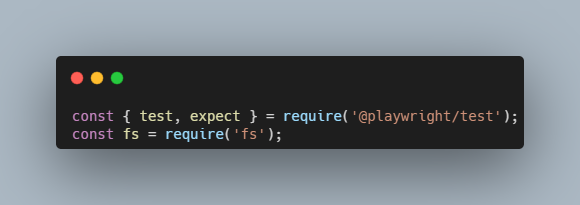
Import the libraries
The code below defines a test case using the Playwright test keyword. This test navigates to a URL that serves a PDF file using the page.goto function. It waits for the download event to be triggered and clicks on a link to download the PDF file:
Press enter or click to view image in full size
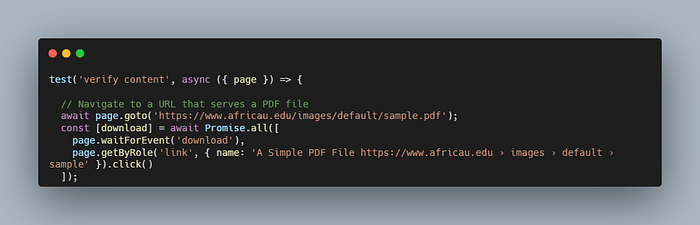
Create a test block and download the PDF file
Once the download has completed, as it can be seen below, the code saves the PDF file into the /ExportData directory using the filename suggested by the download event. It uses the pdf-parse module to extract the text from the PDF file and save it to a file called actual.txt into the /ExportData directory:
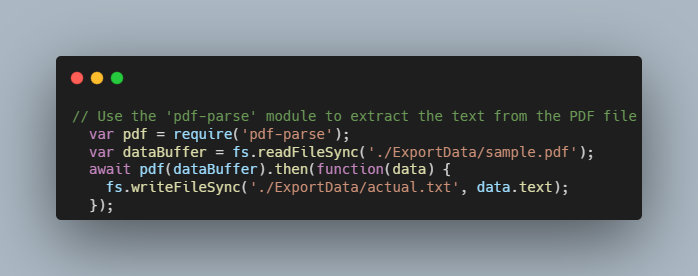
Import pdf-parse and write the text content into the actual.txt file
The code snippet below reads the expected and actual values from the files that were saved earlier. It uses the expect function from Playwright to assert that the values match. If they do not match, the test will fail:
Press enter or click to view image in full size
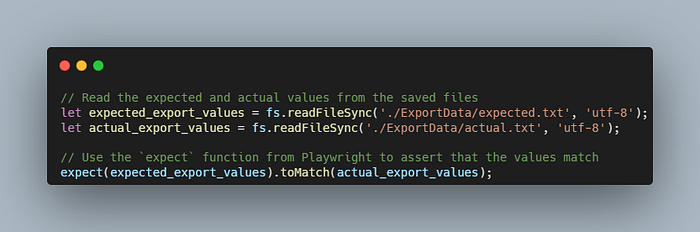
Read and compare the text files
At the end, the complete example.spec.jsfile:
const { test, expect } = require('@playwright/test');
const fs = require('fs');test(‘verify content’, async ({ page }) => {
await page.goto(‘https://www.africau.edu/images/default/sample.pdf’);
const [download] = await Promise.all([
page.waitForEvent(‘download’),
page.getByRole(‘link’, { name: ‘A Simple PDF File https://www.africau.edu › images › default › sample’ }).click()
]);
const suggestedFileName = download.suggestedFilename();
const filePath = ‘ExportData/’ + suggestedFileName;
await download.saveAs(filePath);
our pdf = require(‘pdf-parse’);
our dataBuffer = fs.readFileSync(‘./ExportData/sample.pdf’);
await pdf(dataBuffer).then(function(data) {
fs.writeFileSync(‘./ExportData/actual.txt’data.text);
});
let expected_export_values = fs.readFileSync(‘./ExportData/expected.txt’, ‘utf-8’);
let actual_export_values = fs.readFileSync(‘./ExportData/actual.txt’, ‘utf-8’);
expect(expected_export_values).toMatch(actual_export_values);
});